Have you bought an Akai MPK225, or something similar, and plugged it into Ableton Live only to be stumped because its “endless” rotary encoders are mapped to a device as absolute encoders by default? No? Well, sorry — you’ve picked a bad time to casually browse through my website, because I’m about to get technical.
Device Advice
Because you’re still reading, I’ll assume you know all about the benefits of using relative encoders with Live devices. Congrats! You’ve earned a shortcut to the good stuff. If you didn’t earn a shortcut, here’s a quick primer.
If a controller is available and selected as a control surface in Live’s preferences, its encoders will be automatically assigned to various Live functions. Most controllers — the MPK, for instance — have a group of rotary encoders assigned to Live’s devices. When you select a device in Live, the controller is automatically mapped to it, so you can use the same set of encoders to control different device parameters as they are selected. Tidy, right?
Most people prefer to use relative encoders for device control. A relative encoder sends instructions to increase or decrease a control’s value relative to the control’s current setting. The MPK’s rotary encoders, on the other hand, are “endless” knobs which — if you select its “Live Lite” preset — are programmed as absolute encoders.
The problem with an absolute encoder in this setting is that it sends value reflecting the encoder’s current position. If an encoder is set to, say, 10, using it to change a control set to 125 will cause a huge jump in value. You can smooth these jumps by adjusting Live’s takeover mode, but the behavior can be inconsistent, especially if you’re only making small adjustments.
Endless encoders are typically used as relative encoders, so it’s easy to assume the MPK’s will be set up this way in Live. But that’s not the case, as you already know, and so here we are.
It’s all Relative
The first step to make things right in the universe — at least as far as Akai and Ableton are concerned — is to set up a new preset for Live in the MPK. You can overwrite the current Live preset, or make a copy:
- Select the “Preset” button and open the Live Lite preset.
- Page over to the “Store Program” menu.
- Select an open slot, and give it a title.
- Push the data knob to save your new preset.
By default, the MPK’s “Live Lite” preset programs its knobs as absolute encoders, but this is easy to change:
- Select the “Edit” button on the MPK.
- Move K1 (the first knob) to select it.
- The “Type” will be set to MIDI CC. Use the data knob to select INC/DEC2. This is one of two relative modes, and the only one Live will recognize.
- Leave all other settings the same.
- Repeat for K2 – K8.
When you’re finished, select the “Preset” button and page over to the “Store Program” menu to save your changes.
Now that we have relative encoders, it’s time to celebrate with common sense device control, right? Not so fast…it turns out Live doesn’t care what you just did, and will still interpret these encoders as absolute by default. The reason it does this is because the MPK asked it to, and it asked this by using a MIDI Remote Script.
A MIDI Remote Wha?
Looking through Live’s preferences, you’ll see a pretty large list of control surfaces Live supports by default:
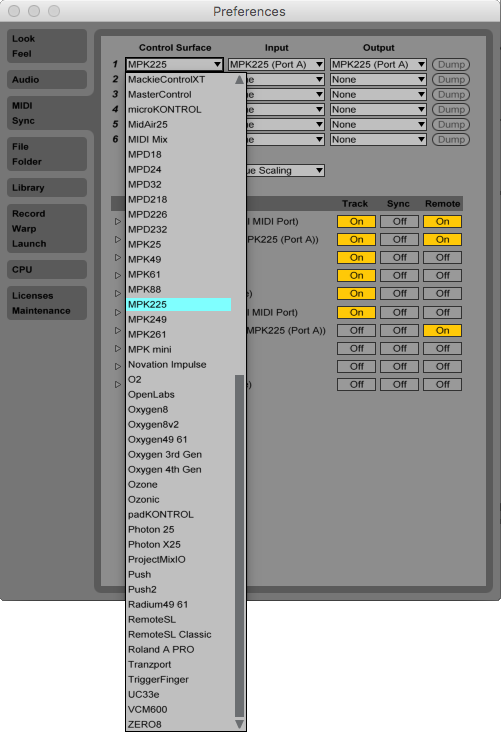
Selecting one of those controllers sets up the mapping between Live and the controller; this mapping is defined by the controller’s MIDI Remote Script. The MIDI Remote Script is a small Python file in the Live installation which, among other things, assigns MIDI messages from the controller to various Live functions.
Python scripts are “compiled” — that is, they are transformed from a human-readable programming language to a computer-readable bytecode language — and therefore, so are Live’s MIDI Remote Scripts. Lucky for us, Live will compile these scripts every time it’s launched, which means we can modify an uncompiled “source” script, and Live will convert it to something it can use.
Ableton doesn’t publicly document MIDI Remote Scripts, so any attempts to modify them — or knowing they exist — would be close to impossible for me if it wasn’t for some great references on the web:
- http://julienbayle.net/ableton-live-9-midi-remote-scripts/
- https://github.com/gluon/AbletonLive9_RemoteScripts
- http://remotescripts.blogspot.com/2010_03_01_archive.html
To find the MIDI Remote Script for the MPK225, right-click on the Live application icon and select “Show Package Contents.” From there, navigate to Contents > App-Resources > MIDI Remote Scripts > MPK225:
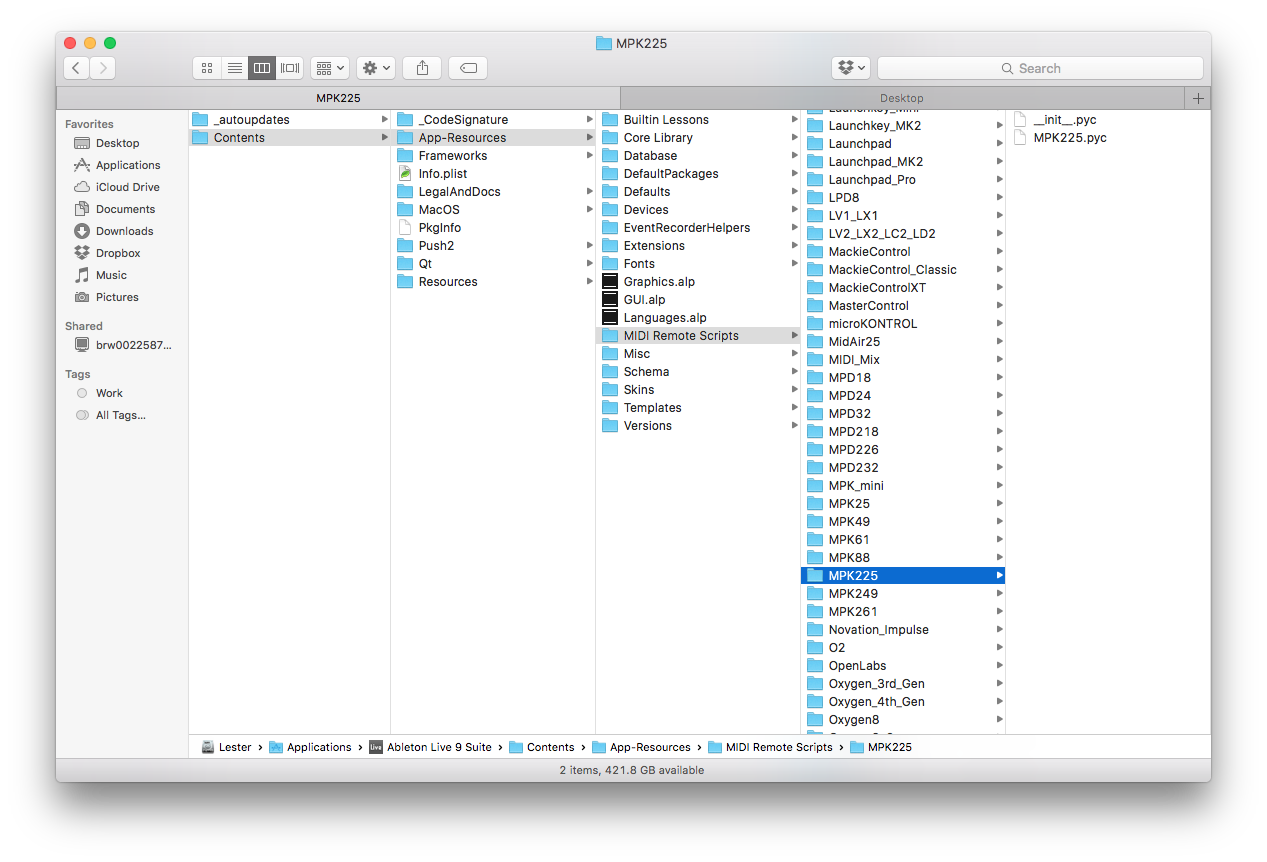
The two .pyc images inside are the compressed Python scripts used by the MPK. Make a backup of the MPK225 folder and put it somewhere safe in case all goes to hell. (It might.) Now, delete those two images — we’ll replace them with new ones.
Next, let’s find our new source scripts. People better than us have uncompiled all of Live’s MIDI Remote Scripts and uploaded them to a repository. You’ll find the MPK225 images here. Download the two scripts and move them into the MPK225 folder.
A Quick Python Disclaimer
Before continuing, please take a moment to read the following disclaimer:
I HAVE NO IDEA WHAT I AM DOING IN PYTHON. EVERYTHING I SAY IS A BAD IDEA.
Seriously, the fix you are about to read is the equivalent of fixing a leaky kitchen faucet by burying your kitchen in concrete. On the other hand — it works, and at the moment no programmers at Akai or Ableton are popping into support forums to provide some elegant code for us, so…let’s follow our heart and not our minds for a moment.
Ok Then
Open MPK225.py in a text editor (TextEdit is fine) and take a look at lines 22 – 29:
self.add_matrix('Encoders', make_encoder, 0, [[22,
   23,
   24,
   25,
   26,
   27,
   28,
   29]], MIDI_CC_TYPE)
This code introduces Live to the MPK’s encoders. The numbers 22 – 29 are the MIDI CC numbers of the eight knobs, and make_encoder is a call to the function that does the heavy lifting. It turns out that make_encoder is defined in the _Framework/MidiMap.py file…
def make_encoder(name, channel, number, midi_message_type): return EncoderElement(midi_message_type, channel, number, Live.MidiMap.MapMode.absolute, name=name)…and there you’ll see the source of all this hassle, the Live.MidiMap.MapMode.absolute line which says to define each encoder as absolute.
We’ll fix that by going back to MPK225.py and adding a modified function…
def make_encoder(name, channel, number, midi_message_type): return EncoderElement(midi_message_type, channel, number, Live.MidiMap.MapMode.relative_two_compliment, name=name)…where Live.MidiMap.MapMode.relative_two_compliment defines each encoder as relative. Add that code between lines 10 (the end of the “from” calls) and 12 (the beginning of the class MidiMap definition).
Launching Live at this point would result in a Python error, because our modified make_encoder needs a function, “EncoderElement,” which isn’t defined anywhere in our script. That function is located in the _Framework/EncoderElement.py file, and we bring it into our script by adding from _Framework.EncoderElement import EncoderElement just before line 8 (the calls to “_Framework.MidiMap”).
Finally, this EncoderElement function would throw an error as well, as it needs code written in the basic Live framework. Adding import Live just after line 2 (the first “real” line of code) fixes this last issue.
Our final script looks like this:
#edited for relative encoder functionality
from __future__ import with_statement
import Live
from _Framework.ControlSurface import ControlSurface
from _Framework.Layer import Layer
from _Framework.DrumRackComponent import DrumRackComponent
from _Framework.TransportComponent import TransportComponent
from _Framework.DeviceComponent import DeviceComponent
from _Framework.EncoderElement import EncoderElement
from _Framework.MidiMap import MidiMap as MidiMapBase
from _Framework.MidiMap import make_button, make_encoder
from _Framework.InputControlElement import MIDI_NOTE_TYPE, MIDI_CC_TYPE
def make_encoder(name, channel, number, midi_message_type):
   return EncoderElement(midi_message_type, channel, number, Live.MidiMap.MapMode.relative_two_compliment, name=name)
class MidiMap(MidiMapBase):
   def __init__(self, *a, **k):
       super(MidiMap, self).__init__(*a, **k)
       self.add_button('Play', 0, 118, MIDI_CC_TYPE)
       self.add_button('Record', 0, 119, MIDI_CC_TYPE)
       self.add_button('Stop', 0, 117, MIDI_CC_TYPE)
       self.add_button('Loop', 0, 114, MIDI_CC_TYPE)
       self.add_button('Forward', 0, 116, MIDI_CC_TYPE)
       self.add_button('Backward', 0, 115, MIDI_CC_TYPE)
       self.add_matrix('Encoders', make_encoder, 0, [[22,
         23,
         24,
         25,
         26,
         27,
         28,
         29]], MIDI_CC_TYPE)
       self.add_matrix('Drum_Pads', make_button, 1, [[67,
         69,
         71,
         72], [60,
         62,
         64,
         65]], MIDI_NOTE_TYPE)

class MPK225(ControlSurface):
   def __init__(self, *a, **k):
       super(MPK225, self).__init__(*a, **k)
       with self.component_guard():
           midimap = MidiMap()
           drum_rack = DrumRackComponent(name='Drum_Rack', is_enabled=False, layer=Layer(pads=midimap['Drum_Pads']))
           drum_rack.set_enabled(True)
           transport = TransportComponent(name='Transport', is_enabled=False, layer=Layer(play_button=midimap['Play'], record_button=midimap['Record'], stop_button=midimap['Stop'], seek_forward_button=midimap['Forward'], seek_backward_button=midimap['Backward'], loop_button=midimap['Loop']))
           transport.set_enabled(True)
           device = DeviceComponent(name='Device', is_enabled=False, layer=Layer(parameter_controls=midimap['Encoders']))
           device.set_enabled(True)
           self.set_device_component(device)
           self._device_selection_follows_track_selection = True
Download: MPK225.py
Save this file and relaunch Live. The .py images will be compiled into new .pyc images, and our new MIDI Remote Script will be ready to load. Select the MPK225 control surface in Live’s preferences, load a few devices in your Live session, and, assuming all has gone well, bask in the joy of using the relative encoders you thought you had already.
One Last Thing
Be sure to save a copy of your modified .py file; because MIDI Remote Scripts are part of Live’s application images, your modifications will be overwritten when Live is updated.
I hope this info is useful for you. If you get in a bind — or better yet, have a better solution! — feel free to get in touch.